How to Stop Double-Booked Arenas and Overworked Horses
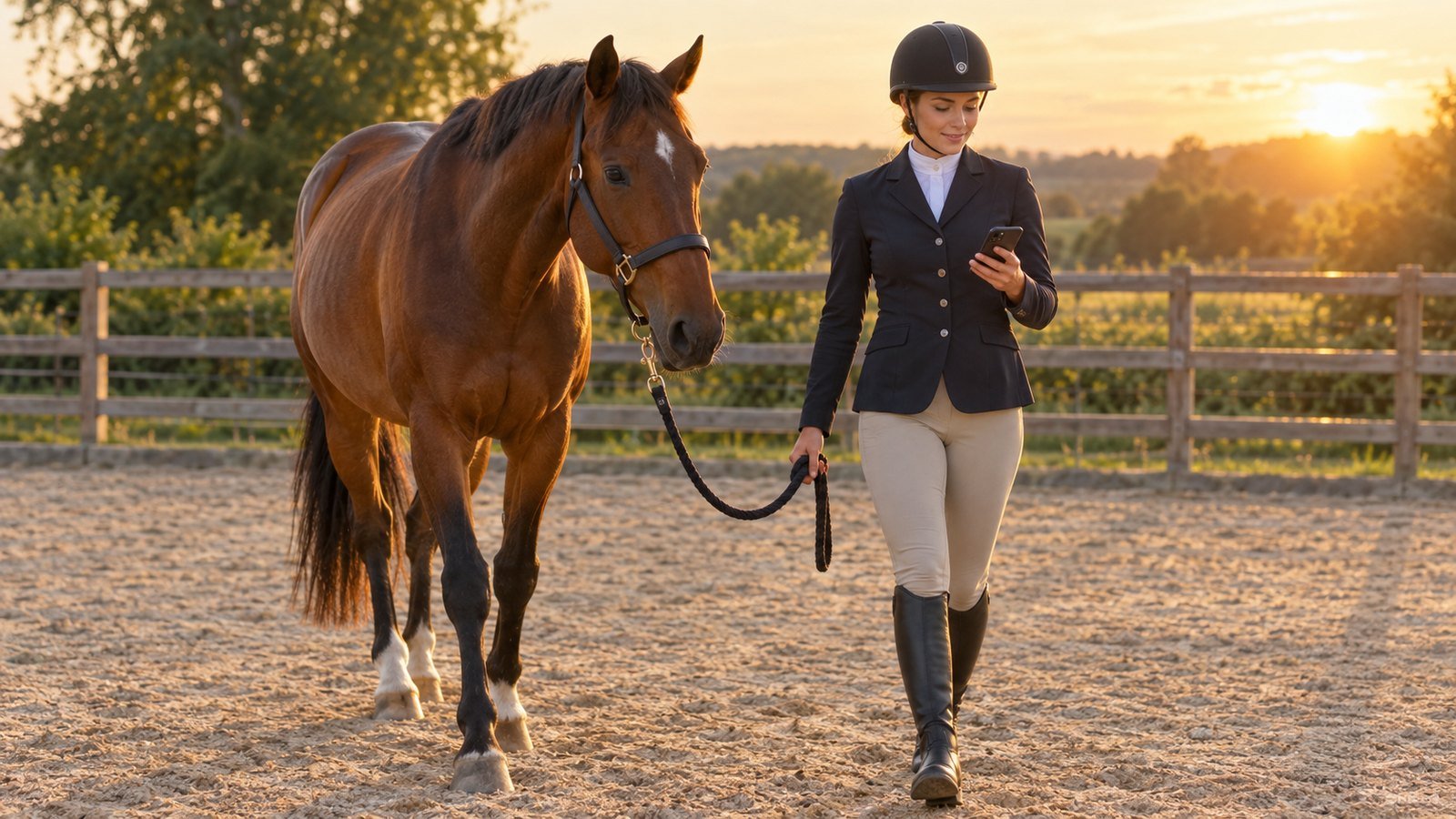
Every stable owner knows the moment. Two instructors arrive at the same arena at 5 pm, or the best school horse is about to do a fourth lesson in a row. Someone has to apologize, and a rider remembers it.
These problems are rarely caused by carelessness. They happen because the schedule lives in too many places: a paper diary, a spreadsheet, a group chat and someone's memory. Moving to dedicated stable scheduling software puts every arena, horse and lesson on the same calendar.
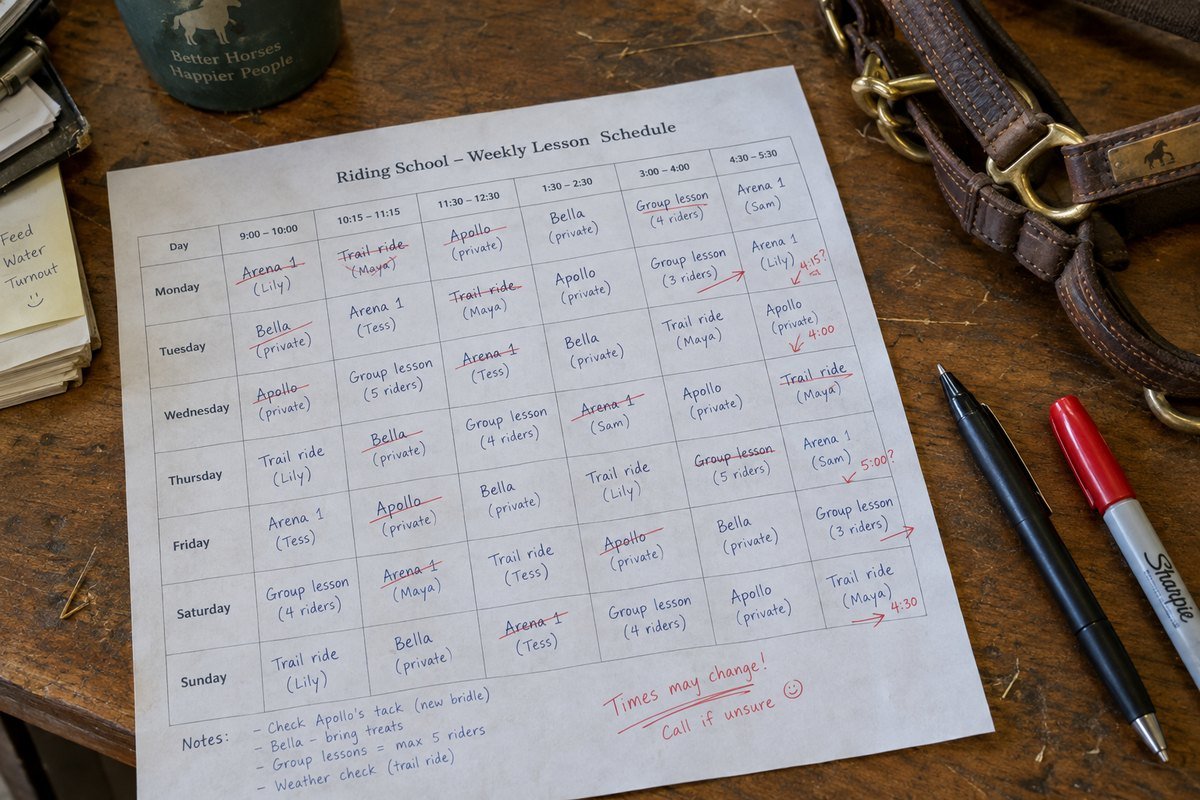
Why scheduling mistakes cost more than you think
- Horse welfare: Overworked horses get sore, sour and eventually unsound. Vet bills and rest time cost far more than a missed lesson.
- Rider trust: A cancelled or crowded lesson is the quickest way to lose a client.
- Your time: Fixing conflicts by phone in the evening is unpaid admin work.
Step 1: Give every arena and field its own place in the schedule
When each arena, training field or custom location is part of an appointment, the system can see where a lesson takes place. Galloply lets you create arenas and fields once, add photos, and then choose the arena, the main stable or a custom location for each appointment.
Step 2: Set a workload limit for every horse
Decide how much work each horse can safely do. A calm school horse may carry several lessons a day, while a young or recovering horse needs far fewer. Galloply stores horse workload limits and checks rider height, weight and skill compatibility against each appointment, so a problem is flagged before the day, not during it.
Step 3: Let the app warn you and suggest assignments
On higher plan tiers, Galloply highlights appointments whose horse assignments break a limit and offers assignment advice. The owner-only horse assignment schedule shows who works when, so you can swap a tired horse for a fresh one in seconds.
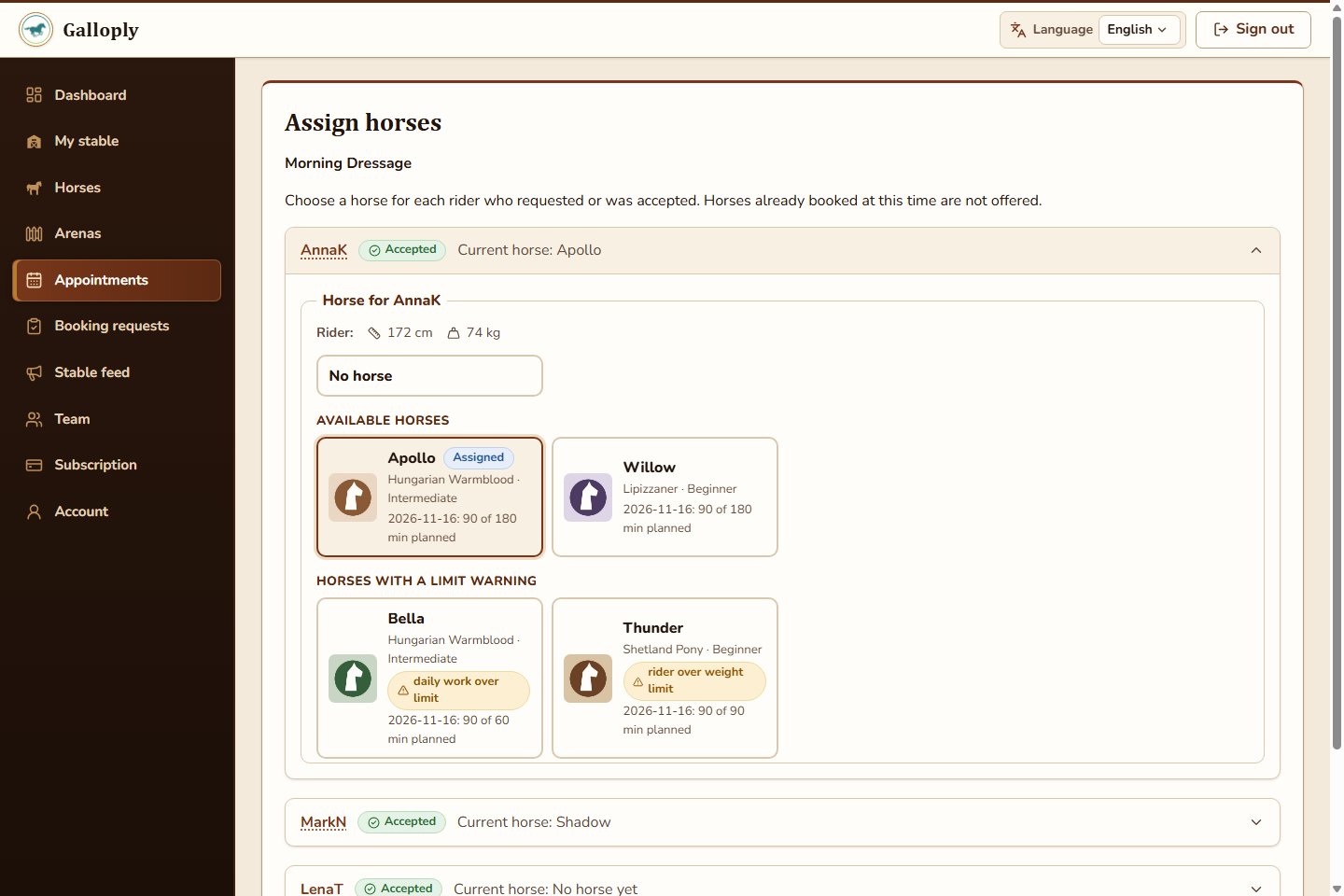
Step 4: Check the "Needs attention" view each morning
Instead of scanning every day of the calendar, open the owner Needs attention view. It lists the appointments with open problems, such as horse-limit conflicts or missing locations, so you handle only what matters before publishing open lesson slots.
What this saves
- Fewer apology calls and rescheduled lessons.
- Fewer worn-out school horses.
- No spreadsheet to maintain.
Quick checklist
- Add every arena, field and horse.
- Set a sensible workload limit per horse.
- Create appointments with an arena or location.
- Review Needs attention each morning.
Ready to schedule with less stress? Explore Galloply, replace scattered calendars with one stable dashboard, and see which appointments need attention today.